Welcome to the Wonderful World of Linux! If you are new to this powerful and open-source operating system, everything might seem a bit confusing or complicated at first glance. But don't worry; the structure of Linux is designed to be very logical and organized.
In this comprehensive educational article, we will first examine the tree-like structure of folders (Filesystem Hierarchy) so you know where everything is located, and then we will move on to the main toolbox of every Linux expert: the basic and practical terminal commands, along with the most important switches and real-world examples.
Part One: Anatomy of the Linux Directory Structure (FHS)
Unlike Windows, where each drive (C: or D:) has its own separate structure, in Linux everything starts from a single root called Root, which is represented by the forward slash /. All files, folders, and even hardware are connected to this root.
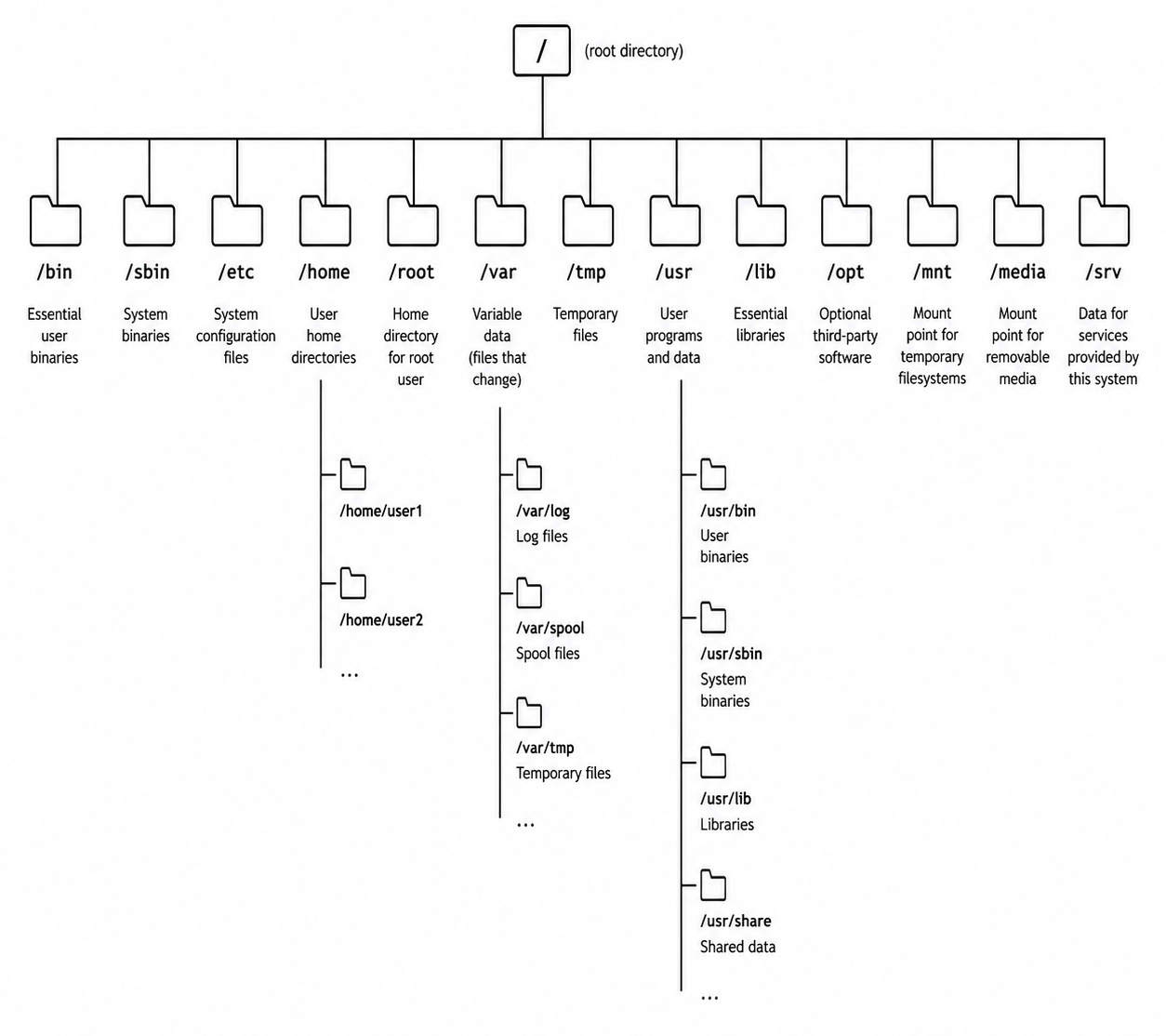
Below, we examine the function of the most important subdirectories under /:
/bin(Binaries): Contains basic system commands and executable programs that are accessible to all users (even in emergency mode) (e.g.,ls,cd,cp)./sbin(System Binaries): Similar to/bin, but the executables in this folder are specifically for the system administrator (Root) and are used for system administration and maintenance tasks (e.g.,ifconfig,reboot)./etc(Etcetera): The beating heart of system configuration. All configuration files for the operating system and installed programs (e.g., network settings, web server, etc.) are located here./home: The home for regular users. Each user has a dedicated folder in this path (e.g.,/home/saleh) where personal files, the desktop, and application settings are stored./root: The personal folder for the Linux superuser. This folder is separate from/hometo maintain its security./var(Variable): Contains files whose size or content changes over time; such as system log files (/var/log), emails, and databases./tmp(Temporary): Storage location for temporary files created by the system or programs. Usually, the contents of this folder are cleared upon each system reboot./dev(Devices): In Linux, "everything is a file," even hardware! This folder contains interface files for accessing hardware such as hard disks (sda), USB ports, and terminals./usr(User System Resources): Contains programs, libraries, and documentation used by users. Programs you install later are typically placed in/usr/binor/usr/local/bin./opt(Optional): Installation location for third-party and commercial applications that are outside the official Linux repositories (e.g., Google Chrome or Discord)./boot: Contains critical files for booting and starting Linux, including the Linux kernel and the GRUB menu./media&/mnt: Paths for temporarily mounting external storage devices like USB flash drives, external hard drives, or other partitions.
Part Two: Encyclopedia of Basic and Essential Linux Commands
Now that you are familiar with the Linux map, it's time to learn how to navigate and control the system using the terminal. Below, we have categorized the commands to make them easier to learn.
Navigation and Path Management Commands
pwd (Print Working Directory)
Shows the exact directory you are currently in.
Example:
pwd
Output: /home/user/projects
cd (Change Directory)
Used to move between folders.
Important Switches/Symbols:
cd ~or justcd: Go directly to the user's Home folder.cd ..: Go back one folder (the parent folder).cd -: Go back to the last folder you were in.
Example:
cd /var/log
cd ..
File and Directory Management Commands
ls (List)
Lists files and folders in a given path.
Important Switches:
-l: Displays the list in detailed format (with size, permissions, and date).-a: Shows all files, including hidden files (those starting with a dot.).-h: Shows file sizes in human-readable format (KB, MB, GB).
Example:
ls -lah /etc
mkdir (Make Directory)
Creates a new folder.
Important Switches:
-p: Creates nested folders automatically (if parent folders do not exist, it creates them).
Example:
mkdir -p project/src/components
touch
Creates a new empty file or updates the access timestamp of an existing file.
Example:
touch index.html script.js
cp (Copy)
Copies files and directories.
Important Switches:
-r: Copies recursively; mandatory for copying directories.-i: Prompts before overwriting an existing file.
Example:
cp -r /home/user/documents /backup/
mv (Move / Rename)
Moves a file/directory or renames it.
Important Switches:
-f: Forces the move without prompting (Force).
Example:
mv old_name.txt new_name.txt  # Rename
mv file.txt /tmp/             # Move
rm (Remove)
Deletes files and directories (be careful, Linux has no trash can!).
Important Switches:
-r: Deletes directories and their contents recursively.-f: Forces deletion without prompting and ignores errors.
Example:
rm -rf /path/to/dangerous_folder
Text Viewing and Processing Commands
cat (Concatenate)
Displays the entire content of a text file in the terminal.
Important Switches:
-n: Numbers the lines of text.
Example:
cat -n /etc/hostname
less and more
Used for reading long text files page by page (press Space to advance, and in less, use the arrow keys to move up and down; exit by pressing q).
Example:
less /var/log/syslog
head and tail
Displays the beginning or ending lines of a file.
Important Switches:
-n: Specifies the number of lines to display.-f(only intail): Displays new lines added to the file in real-time (excellent for monitoring logs).
Example:
head -n 5 /etc/passwd
tail -f /var/log/nginx/access.log
grep (Global Regular Expression Print)
Searches for specific text or a pattern within files.
Important Switches:
-i: Ignores case sensitivity.-r: Searches recursively within all files in a folder.-n: Displays the line number where the word was found.
Example:
grep -rn "error" /var/log/
Permission Management Commands
In Linux, permissions are divided into three categories: User (u) , Group (g) , and Others (o) , and consist of three modes: Read (r=4) , Write (w=2) , and Execute (x=1) .
chmod (Change Mode)
Changes the permission level of a file or folder.
Example (Numeric Method):
chmod 755 script.sh  # User full, others only read and execute
chmod 644 file.txt   # User read and write, others only read
Example (Symbolic Method):
chmod +x script.sh # Adds execute permission to the file
chown (Change Owner)
Changes the owner or group of a file or folder.
Example:
chown saleh:developers document.pdf
chown -R www-data:www-data /var/www/html  # Recursively changes ownership of the web server folder
System and Process Management Commands
sudo (Superuser Do)
Executes commands with the privileges of the highest-level user (Root or administrator).
Example:
sudo apt update
ps and top / htop
Displays currently running processes on the system.
ps aux: Shows a list of all running processes at that moment.toporhtop: Graphical and real-time tools for monitoring CPU, RAM usage, and processes. Example:
ps aux | grep mysql
kill
Terminates a process using its Process ID (PID).
Important Switches:
-9: Forcefully and immediately terminates the process (Force Kill).
Example:
kill -9 1234
df and du (Disk Usage)
df -h: Shows the total, used, and available space on hard disk partitions in human-readable format.du -sh *: Shows the total size of each folder and file in the current directory in a summarized format. Example:
df -h
du -sh /var/log/
Networking and Download Commands
ping
Checks network connectivity to another server.
Important Switches:
-c: Specifies the number of packets to send (in Linux, ping continues until manually stopped).
Example:
ping -c 4 8.8.8.8
curl and wget
Powerful tools for downloading files or sending requests to websites via the terminal.
-
wget: Mainly used for downloading files. -
-c: Resumes an interrupted download. -
curl: Used for interacting with network protocols. -
-O: Saves the file with its original name. -
-I: Retrieves only the HTTP protocol headers.
Example:
wget -c https://example.com/file.zip
curl -O https://example.com/image.png
Advanced Search Commands
find
The most powerful command for searching files and folders across different directories based on name, size, modification time, and permissions.
Important Switches:
-name: Searches by file name (case-sensitive).-iname: Searches by file name (case-insensitive).-type: Specifies the search type;ffor file anddfor directory.-size: Searches by file size (e.g.,+50Mfor files larger than 50 megabytes).
Example:
find /home/user/ -iname "*.pdf"
find /var/log/ -type f -size +100M
locate
A very fast alternative to find that uses Linux's internal database instead of searching the entire hard drive.
- Note: To update its database, you must first run the command
sudo updatedb. Example:
locate nginx.conf
Compression and Archiving Commands
tar (Tape Archive)
The standard tool in Linux for bundling multiple files together (archiving) and compressing them.
Important Switches:
-c: Creates a new archive file (Create).-x: Extracts and opens the archive file (Extract).-v: Displays the list of files being processed (Verbose).-f: Specifies the archive file name (File) - this switch must always be the last one.-z: Compresses using the gzip algorithm (.tar.gzextension).-j: Compresses using the bzip2 algorithm (.tar.bz2extension).
Examples:
tar -cvzf backup.tar.gz /home/user/documents  # Compresses a folder
tar -xvzf backup.tar.gz -C /tmp/              # Extracts the file to a specific path
zip and unzip
Used for working with the popular zip format (which is also common in Windows).
Important Switches:
-r: Recursively compresses folders (in thezipcommand).-d: Specifies the output path for extraction (in theunzipcommand).
Examples:
zip -r project.zip /path/to/project
unzip project.zip -d /home/user/extracted/
Advanced Network Management Commands
ip
The modern tool and replacement for the older ifconfig command for managing network interfaces, IP addresses, and routing.
Important Switches/Subcommands:
ip aorip address: Displays all network interfaces and their assigned IP addresses.ip route: Displays the routing table and the system's gateway.
Example:
ip a
ss (Socket Statistics)
A modern and very fast tool that replaces the older netstat command; used to view open ports and network connections.
Important Switches:
-t: Shows TCP connections.-u: Shows UDP connections.-l: Shows ports that are listening.-n: Shows port numbers numerically (instead of service names).-p: Shows the name of the program using the port (requiressudo).
Example:
sudo ss -tulnp
nslookup / dig
Used to query DNS servers to find the IP of a domain or vice versa.
Example:
dig google.com
nslookup yahoo.com
Bonus Utilities and Tricks
history
Displays a list of all the commands you have previously typed in the terminal.
- Tip: Combining this command with
grephelps you find a command you typed weeks ago. Example:
history | grep "ssh"
alias
Creates shortcuts or aliases for long and difficult commands.
Example:
alias ll="ls -lah"
# Now typing ll in the terminal will execute the command ls -lah.
ln (Link)
Creates a shortcut or symbolic link to another file or folder.
Important Switch:
-s: Creates a soft or symbolic link.
Example:
ln -s /var/www/html/index.html /home/user/Desktop/shortcut.html
clear
Clears the terminal screen and removes previous text from view (the visual keyboard shortcut is Ctrl + L).
Example:
clear
User and Group Management Commands
useradd and userdel
Used to create a new user or delete existing users on the system.
Important Switches:
-m: Automatically creates a dedicated Home folder for the new user (inuseradd).-r: Deletes the Home folder and all user files when removing the user (inuserdel).
Examples:
sudo useradd -m newuser
sudo userdel -r olduser
passwd
Changes a user's password (if run without a username, it changes the current user's password).
Example:
sudo passwd saleh
Hardware Monitoring and System Information Commands
free
Displays the total, used, and free amount of RAM and Swap memory.
Important Switches:
-m: Displays information in megabytes.-h: Displays information in a completely human-readable format (gigabytes and megabytes).
Example:
free -h
uname (Unix Name)
Displays Linux kernel information and system architecture.
Important Switch:
-a: Displays all system information including kernel version, hostname, processor architecture (e.g., x86_64), and release date.
Example:
uname -a
lscpu
Displays detailed and technical specifications of the system's CPU, including the number of cores, threads, architecture, and cache memory.
Example:
lscpu
Input/Output Operators and Combining Commands (I/O Redirection & Pipes)
One of the greatest strengths of Linux is the ability to combine commands. These are not commands themselves, but essential terminal tools.
The Pipe Symbol | (Pipe)
Takes the output of the first command and feeds it as input to the second command.
Example:
# Displays all processes and filters them to find nginx
ps aux | grep nginx
Redirection Symbols > and >> (Redirection)
>: Writes the output of a command into a file (if the file exists, it completely overwrites the previous content).>>: Appends the output to the end of a text file (without overwriting the previous content). Examples:
echo "Hello World" > test.txt
date >> test.txt  # Appends the current date to the end of the file
Time and Scheduling Commands
date and uptime
date: Displays the current system time and date.uptime: Shows how long your server or system has been running continuously, in days, hours, and minutes. Example:
uptime
# Sample Output: 12:10:00 up 45 days,  3:14,  1 user...
sleep
Creates a delay or pause in seconds before executing the next command (very useful in scripting).
Example:
echo "Wait for 5 seconds..."; sleep 5; echo "Done!"
Terminal Shortcut Tricks
In addition to commands, knowing these key combinations will multiply your speed in Linux:
Tab: Autocompletes command names, file names, or paths. (Pressing it twice shows all possible options).Ctrl + C: Immediately stops and kills the currently running command (e.g., stopping a long ping).Ctrl + Z: Sends the currently running command to the background in a suspended state.Ctrl + R: Smart and advanced search in the history of previous commands by typing a few characters.
A Golden Tip!
Learning Linux commands requires consistent practice. Whenever you hear a command name but forget its switches, you don't need the internet! Just use the man (Manual) command to open the complete manual for that command right in your terminal:
man grep
(To exit the manual environment, press the q key).